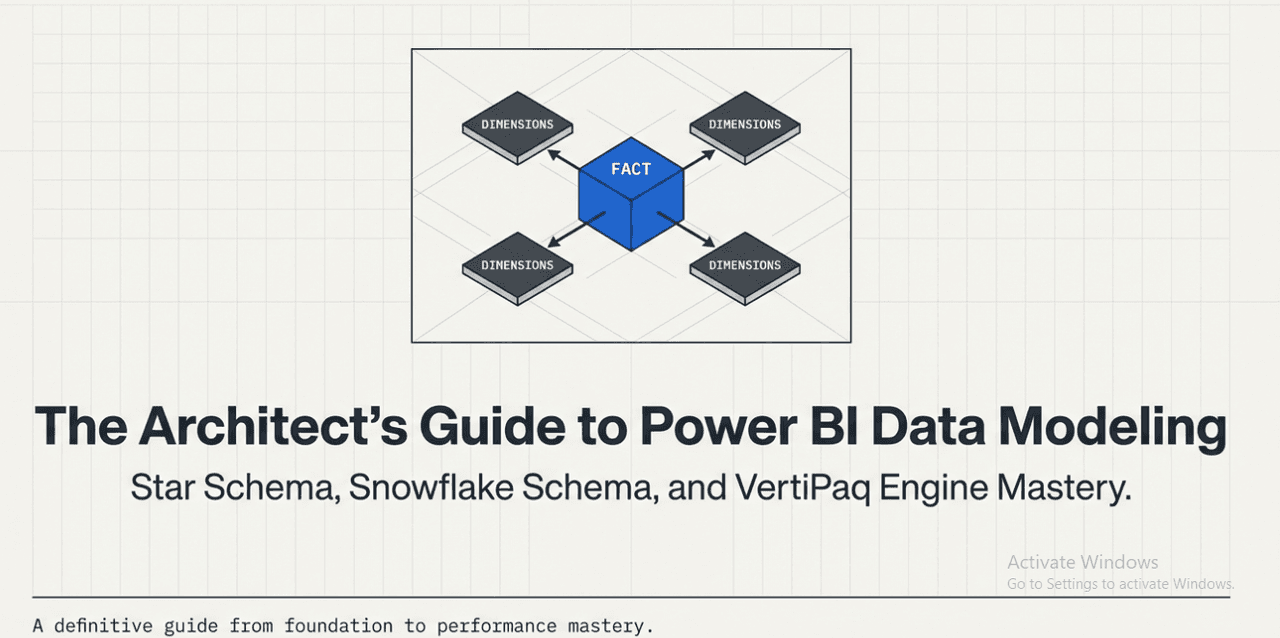
Star Schema in Power BI: The Complete Guide to Dimensional Modeling
You connect your data to Power BI. You have products, categories, subcategories, regions, managers, stores — all in separate tables linked together. You build your relationships, write some measures, and everything seems fine.
Then your report slows down. A measure returns the wrong number. Or worse — a developer at your company says "your model is wrong" and you don't know why.
The root cause, almost always, traces back to data model design. And the decision at the center of that design is one most analysts never fully understood: Star Schema vs Snowflake Schema.
This is the mental model that changes how you build — permanently.
Why This Matters
Power BI isn't just a visualization tool. It's an in-memory analytical engine (VertiPaq) sitting on top of a relational model. How you structure that model determines:
- How fast your reports run
- Whether your DAX measures produce correct results
- How scalable your solution is as data grows
- Whether Power BI can efficiently filter and aggregate your data
The modeling decision is made before you write a single DAX measure. Getting it right is foundational. Getting it wrong is a tax you pay on every interaction.
Core Content: The Two Schemas, Explained
What Is a Star Schema?
A star schema has one central fact table surrounded by denormalized dimension tables. It gets its name because the model diagram looks like a star — the fact table at the center, dimensions radiating outward.
         [Dim_Date]
              |
[Dim_Customer] — [Fact_Sales] — [Dim_Product]
              |
         [Dim_Store]
Fact Table contains:
- Foreign keys to each dimension (DateKey, CustomerKey, ProductKey, StoreKey)
- Measurable numeric values (Sales Amount, Quantity, Discount, Profit)
- One row per business event (one row per transaction)
Dimension Tables contain:
- Descriptive attributes (Product Name, Category, Region, Customer Segment)
- Denormalized — all attributes in one flat table, even if that causes some repetition
- One row per entity (one row per product)
Example dimension table (Dim_Product):
| ProductKey | ProductName | Category | SubCategory | Brand | Color |
|---|---|---|---|---|---|
| 101 | Widget Pro | Electronics | Gadgets | BrandX | Black |
| 102 | Gadget Lite | Electronics | Gadgets | BrandY | Silver |
Notice that "Electronics" is repeated across multiple rows. In normalization terms, this is redundant. In BI terms, this is correct — and this is where most analysts get confused.
What Is a Snowflake Schema?
A snowflake schema takes the dimension tables and normalizes them — splitting them into multiple related tables to eliminate redundancy.
The same product model in a snowflake schema:
[Dim_Product] → [Dim_SubCategory] → [Dim_Category]
     ↑
[Fact_Sales]
Now instead of one Dim_Product table, you have three tables linked in a chain. To get from Sales to Category, Power BI must traverse two relationships.
This mirrors what you'd typically find in a well-normalized OLTP database (transactional systems). It makes perfect sense for storage efficiency in databases. It is a sub-optimal choice for Power BI.
Side-by-Side Comparison
| Dimension | Star Schema | Snowflake Schema |
|---|---|---|
| Structure | Flat, denormalized dimensions | Normalized, multi-level dimensions |
| Relationships | Simple (fact → dimension) | Complex (chains of dimension tables) |
| DAX Complexity | Low | Higher — filter must traverse multiple hops |
| Query Performance | Fast (VertiPaq optimized) | Slower (multi-join overhead) |
| Model Readability | High | Low (harder to follow) |
| Storage | Slightly more (repeated values) | Slightly less |
| Best For | BI / Power BI / Reporting | OLTP / Database normalization |
| Recommended for Power BI | Yes | No (flatten before loading) |
Technical Insight: Why VertiPaq Loves Star Schemas
Power BI's VertiPaq engine is a columnar, in-memory store with dictionary encoding. What this means practically:
Dictionary encoding — VertiPaq stores each unique value in a column once, then uses integer codes for each row instead of the raw value. So "Electronics" appearing 1,000 times in a column only takes storage once. Redundancy in a star schema dimension is nearly free.
Columnar compression — Columns with low cardinality (few unique values) compress extremely well. A "Category" column with 10 unique values across 1 million rows compresses to near nothing.
Filter propagation — In a star schema, filters flow from dimension to fact in one clean hop. The engine can evaluate this filter efficiently because the relationship is 1-to-many and unambiguous.
In a snowflake schema, a filter on Category must first filter SubCategory, which then filters Product, which then filters the fact table. Each hop is an additional join evaluation. The compression benefits of normalization don't apply in VertiPaq — and the multi-hop penalty does.
This is why the recommendation is clear: Flatten your snowflake dimensions into star schema dimensions before loading into Power BI. Use Power Query to merge the category chain into a single Dim_Product table.
How to Flatten a Snowflake in Power Query
If your source has:
Productstable withSubCategoryIDSubCategoriestable withCategoryIDCategoriestable
In Power Query:
- Reference the
Productsquery - Merge with
SubCategoriesonSubCategoryID(Left Outer Join) - Expand the
SubCategoryNameandCategoryIDcolumns - Merge with
CategoriesonCategoryID - Expand
CategoryName - Remove the ID columns no longer needed
Result: A single flat Dim_Product table. One relationship to your fact table. Star schema.
When a Snowflake Is Acceptable in Power BI
There are narrow cases where keeping linked dimension tables is intentional:
- Role-playing dimensions — same date table used for Order Date, Ship Date, Due Date (multiple inactive relationships)
- Junk dimensions — grouping low-cardinality flags/codes into a small bridge table
- Shared dimensions — two fact tables share the same Dim_Customer or Dim_Date (this is fine and expected — it's not snowflake, it's a constellation schema)
- Hierarchy tables — geographic hierarchies (Country → State → City) where the chain is a deliberate design choice, often in large enterprise models
These are intentional structural patterns — not the same as accidentally carrying over a normalized OLTP schema into Power BI.
Common Mistakes
Mistake 1 — Bringing the OLTP schema directly into Power BI
Source databases are normalized for write performance. BI tools need denormalized structures for read performance. Don't treat Power Query as a passthrough — it's your opportunity to reshape the model.
Mistake 2 — Using bidirectional cross-filtering to work around model issues
When a filter doesn't flow the way you need, the instinct is to enable bidirectional filtering. This creates ambiguity in the filter path and is almost always a sign of a modeling problem that should be solved structurally, not with a settings change.
Mistake 3 — Fact-to-fact relationships
Two fact tables should never be directly related. If you need to relate two fact tables, connect them through a shared dimension. A direct fact-to-fact relationship causes fan traps (inflated numbers) and incorrect aggregations.
Mistake 4 — Treating every lookup table as a dimension
Not all lookup tables belong in the model as dimensions. Small reference tables (e.g., country codes, currency conversion rates) might be better merged into the relevant fact or dimension table in Power Query, reducing model complexity.
Mistake 5 — Building the model after the report
Many analysts start visually — they drag data onto a canvas and figure out the model later. This creates technical debt. Model first. Define the grain of your fact table. Build dimensions. Then build visuals on top.
Pro Tips
- Always define the grain of your fact table before anything else. "One row per transaction" or "one row per daily product-store inventory count" — this definition drives every modeling decision.
- Name your tables clearly:
Fact_Sales,Dim_Customer,Dim_Date— the prefix makes the role obvious to everyone who opens the model. - Keep date at the center. Almost every Power BI model has a date dimension as the most queried dimension. Make sure it's a clean, complete date table — not a derived date column from your fact.
- Validate your relationships with a Matrix visual — put a dimension attribute on rows, a measure on values, and compare totals with a known source. Unexplained doubles or halves usually indicate relationship issues.
- Use the Model View regularly — not just at the start. As models grow, visual inspection of the relationship diagram catches structural problems before they become DAX nightmares.
Summary
| If you're building in Power BI... | Use This |
|---|---|
| Default modeling pattern | Star Schema |
| Source is OLTP/normalized | Flatten with Power Query first |
| Multiple fact tables sharing dims | Constellation (still star-based) |
| Complex hierarchies with intentional chaining | Document and justify carefully |
The star schema is not a preference — it's the architecture that Power BI's engine is built around. Understanding why — VertiPaq's columnar compression, single-hop filter propagation, relationship simplicity — is what separates someone who follows a rule from someone who understands the system.
That understanding is what makes you dangerous in an interview, and reliable on a real project.
CTA
Data modeling is the skill that determines whether your Power BI work scales — or breaks under pressure.
If you want to build models that are fast, accurate, and interview-ready, this is exactly what Namste Power BI — From Basics to Interviews is built around.
The series covers star schema design, relationship mechanics, filter flow, and how to build models that are as clean as the reports you build on top of them.
No shortcuts. No fluff. Real modeling for real projects.

Shashikant
· Founder, DevWithDataData professional and Power BI instructor. Building DevWithData to help analysts prove their skills, not just collect certificates.
Reading is not enough. Prove your skill.
DevWithData measures your actual ability with the Data Readiness Index. Stop reading — start practicing.
Continue Learning
10 Common Power BI Mistakes That Make Your Reports Wrong and Slow
These 10 mistakes cost beginners weeks of debugging. Every one is preventable if you know what to watch for — from the mega-table anti-pattern to the CALCULATE trap that produces silently wrong numbers.
5 min read25 Power BI Interview Questions That Actually Get Asked in 2026
These aren't textbook questions — they're the ones that separate candidates who get hired from those who freeze. Real scenarios, real DAX problems, and the exact reasoning interviewers want to hear.
4 min readThe Only DAX Functions Cheat Sheet You'll Ever Need (Power BI 2026)
Stop Googling DAX syntax mid-build. This cheat sheet organizes 50+ functions by purpose — the way working analysts actually think. Includes CALCULATE patterns, time intelligence, and the 3 formulas that solve 80% of business problems.
5 min read